What I have to Say....

Thank you for stopping by. Sharing Times of My Life is a place to share my family and travel photographs. I will be sharing some of my own tutorials which eventually will include my tutorial on how to create your own home-made videos using your own photographs and videos and put it all together to dvd or cd. Anything Paintshop Pro such as tips and tricks and my PSP creations. Recipes I make and that the family actually likes.
Let's see, what else...
Some memorable moments and some that are not.
Showing posts with label Templates. Show all posts

Wednesday, February 18, 2009

Stamp Template

Here is the final template I will be sharing today.

Download it here.

Photo Album Template

Also created in photoshop using an Action. I took the psd file to psp and converted it to a pspimage.
Here is a simple example I put together quickly.


download the photo album template here.
In the zipped folder I have included instructions on how to use. Such as changing the photo corner colors. As well as changing the picture border color and even page one's color.

25 Picture Collage Template

This one and the previous template were all made in Photoshop CS3 using actions. Action is a photoshop term and in Paintshop pro it is known as scripts. I haven't come across these actions to create this template and the previous one for psp. So, I took the psd templates to psp and saved them in psp format.
This next one, I haven't played with yet to add my own pictures.
Here is what it looks like.


this one has a drop shadow and you can download it here.


download here. This one will not have a drop shadow.

Inside each zipped folder is several different sizes for the template as well as instructions on how to use it.

Big Picture Collage Template1

Here is the example of what it looks like.
download link here.
This template includes a drop shadow and the non-drop shadow version. (for the template without a drop shadow, read on) In the zipped folder I explain how to use it as well, I have included different sizes too. 5x7, 8x10, 11x14 and 12x12


How to use these templates:
open up the this collage template in psp and your photograph you wish to add to it.
on your photo Edit--copy
go to the template and Edit-paste into selection
Image-sharpen-sharpen

if you find the photo looks distorted
go here for aspect ratio tutorial written by me
http://sharingtimesofmylife.blogspot.com/2009/01/how-to-figure-out-aspect-ratio.html

Template 23

Template 23, I created over 3 years ago. Here is an example.
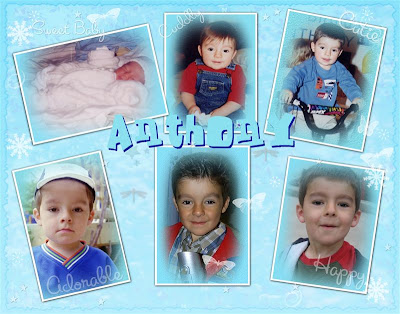

download link for the blank template is here.
Zipped file contains a 5x7, 8x10, 11x14 and 12x12

In this template there are several angled picture inserts and to get your photo's perspective correct, I came up with this technique.

The picture you want to add, copy and paste it above the angled layer you wish to add it to.Resize it. If the size is not as close as you would like it to be then hit CTRL+Z to undo and resize again, until you get it close to the shape's size (when resizing the photo, make sure to uncheck resize all layers.

next, use the magic wand and click it on the angled shape. Now it is selected.

with the mover tool, bring your picture on top of it. Hit the D or K key to adjust it appropriately to fit the shape.
don't deselect.
Once you are happy with the location, go to Selections-Invert
and hit delete on the keyboards.
Don't forget that if you have resized the photo to sharpen it.
My Aspect ratio tutorial can also be used. http://sharingtimesofmylife.blogspot.com/2009/01/how-to-figure-out-aspect-ratio.html

Template 22

This means I have 21 other templates I have not posted yet. But I might just go backwards with sharing my blank templates.
Template 22 was created over a year and a half ago. I created it for Carlina when she was turning 10.
Here is the example of Template 22

Here is the download link to get Template 22, download here.
In the zipped folder, I have include a 5x7, 8x10, 11x14 and 12x12. They are in psp format and so if anyone needs it in psd format, you can email me at mayflower1965@msn.com .

My Aspect ratio tutorial will come in handy, to get the correct perspective in each blank photo layer.
My Aspect ratio tutorial can also be used. http://sharingtimesofmylife.blogspot.com/2009/01/how-to-figure-out-aspect-ratio.html

The Urso's

The Urso's

Friend's-Family Corner

..

Don't hit the fish on the head